CHILDFREE TRUST
CHILDFREE TRUST IS THE FIRST US-BASED SPECIALIZED PLATFORM PROVIDING ESTATE PLANNING AND FIDUCIARY SERVICES FOR INDIVIDUALS WITHOUT CHILDREN. THE CRM SERVES INTERNAL STAFF ACROSS THREE DISTINCT ROLES — CALL CENTER, MEDICAL, AND WELON TRUST — ENABLING EMERGENCY MEDICAL RESPONSE, LEGAL DOCUMENT MANAGEMENT, EVIDENCE SUBMISSION, AND MULTI-STEP PROCESS TRACKING. AS A SOLO DESIGNER, I ENHANCED AND CONSOLIDATED THE EXISTING DESIGN SYSTEM, THEN REDESIGNED ~100 SCREENS TO CREATE A COHESIVE, EFFICIENT PLATFORM THAT BALANCES SPEED, SECURITY, AND CLARITY IN HIGH-STAKES SITUATIONS.
THE CHALLENGE
THE PAIN
Childfree Trust operates in a highly sensitive space — providing fiduciary and estate planning services for individuals without children or close relatives. The existing platform faced critical challenges:
- Emergency situations require instant access to medical documents, POA (Power of Attorney), and legal directives — but the system was fragmented and slow
- Three distinct user roles (Call Center, Medical, Welon Trust) needed different interfaces and permissions, but the UX was inconsistent and confusing
- No unified design system — components were scattered, making development slow and the interface inconsistent
- Complex workflows for medical incidents, document access, and evidence submission lacked clear visual guidance
- Sensitive data handling required strict role-based access control without sacrificing usability
THE SOLUTION
This wasn't just another CRM — it was a life-critical system where each role has unique workflows, but all must share a consistent visual language and interaction patterns:
- Call Center handles emergency medical incident reporting and routing (5-step workflow)
- Medical Role conducts medical reviews, tracks POA / My Care reports, and manages medical notes
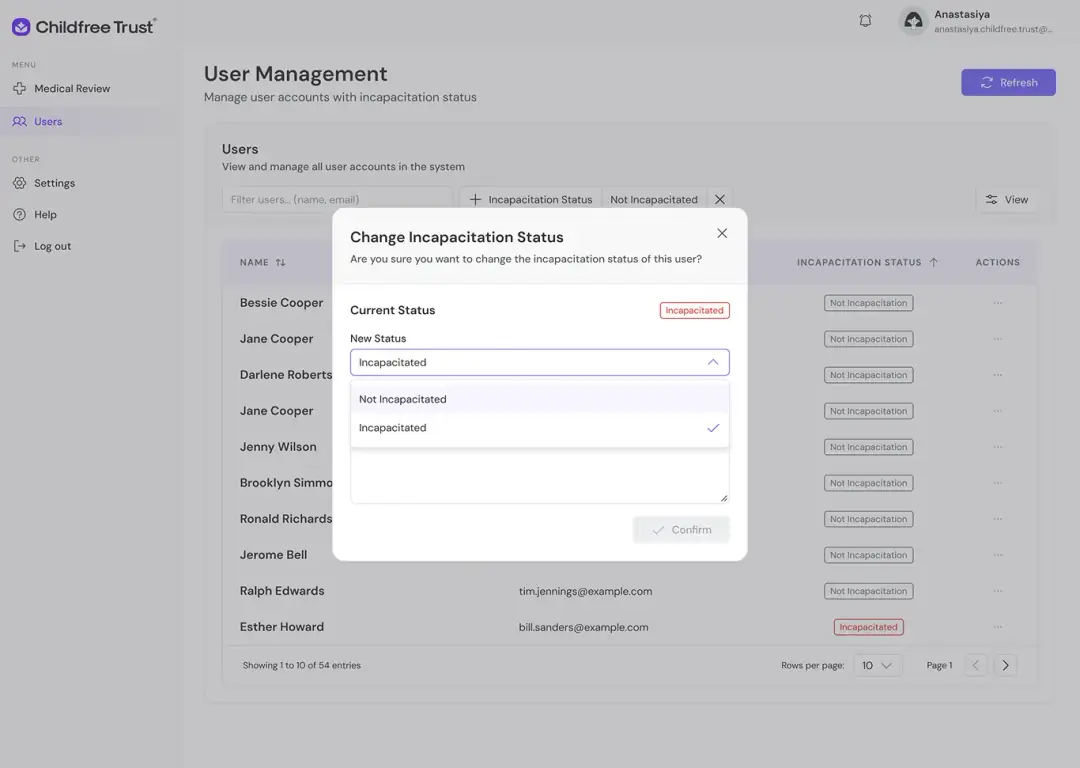
- Welon Trust manages emergency document access, evidence submission, shipping, and user incapacitation status
INFORMATION ARCHITECTURE & UX STRATEGY
THE PAIN
With three distinct roles, complex permissions, and hierarchical data (Clients → Documents → Incidents → Evidence), the risk of creating a confusing, overwhelming interface was high. Users needed to quickly navigate between dashboards, cases, and documents without getting lost.
THE SOLUTION
I designed a clear, hierarchical information architecture with:
- Sidebar navigation organized by logical modules (Dashboard, Users, Documents, Incidents, Evidence, Alerts)
- Expandable menu sections to reduce cognitive load while maintaining quick access
- Consistent data patterns across all modules (filters → table → actions)
- Multi-level drill-down from dashboard overview to detailed case records
DESIGN SYSTEM CONSOLIDATION & ENHANCEMENT
THE PAIN
The platform had a basic design system, but components were inconsistent, documentation was incomplete, and the system didn't scale well across 100+ screens and 3 different user roles.
THE SOLUTION
I enhanced and consolidated the existing design system into a unified, scalable framework:
- Color System: Refined purple/indigo primary palette conveying trust, professionalism, and healthcare credibility; semantic colors for status indicators (green = approved, red = urgent, orange = pending)
- Typography: Clean, highly readable sans-serif system optimized for data-dense interfaces and long work sessions
- Spacing & Grid: 8px grid system ensuring consistency across all components
- Icon System: Custom purple line icons with consistent stroke weight and style across all modules
- Component Library: navigation, data tables, status badges, form inputs, buttons, tabs, alerts & notifications, cards, and modals
- Scalability: reusable patterns applied across all modules, consistent action patterns (eye icon for view, three-dot menu for more actions), and modular architecture allowing developers to build new screens quickly
ROLE-BASED ARCHITECTURE & NAVIGATION
THE PAIN
Three distinct user roles with different responsibilities needed tailored interfaces, but maintaining consistency while providing role-specific functionality was challenging.
THE SOLUTION
I designed a unified navigation structure with role-based menu variations:
- Common Navigation: Dashboard, Documents, Help, Log out — available to all roles
- Role-Specific Modules: Call Center Role — Medical Incident (create and manage 5-step incident reports); Medical Role — Medical Review (conduct 4-step reviews, track POA and care reports, manage medical notes); Welon Trust Role — Dashboard, Document Management, Emergency, Submit Evidence, Shipping & Tracking
- Context-Aware Sidebar: purple accent color for active states, section labels (MENU / OTHERS)
- User Profile: top-right profile with name, email, and notification bell for all roles
WELON ROLE: EMERGENCY DASHBOARD
THE PAIN
In emergency situations (client incapacitation, hospitalization), Welon Trust staff need instant access to critical functions. Traditional dashboards with complex charts and metrics waste precious seconds.
THE SOLUTION
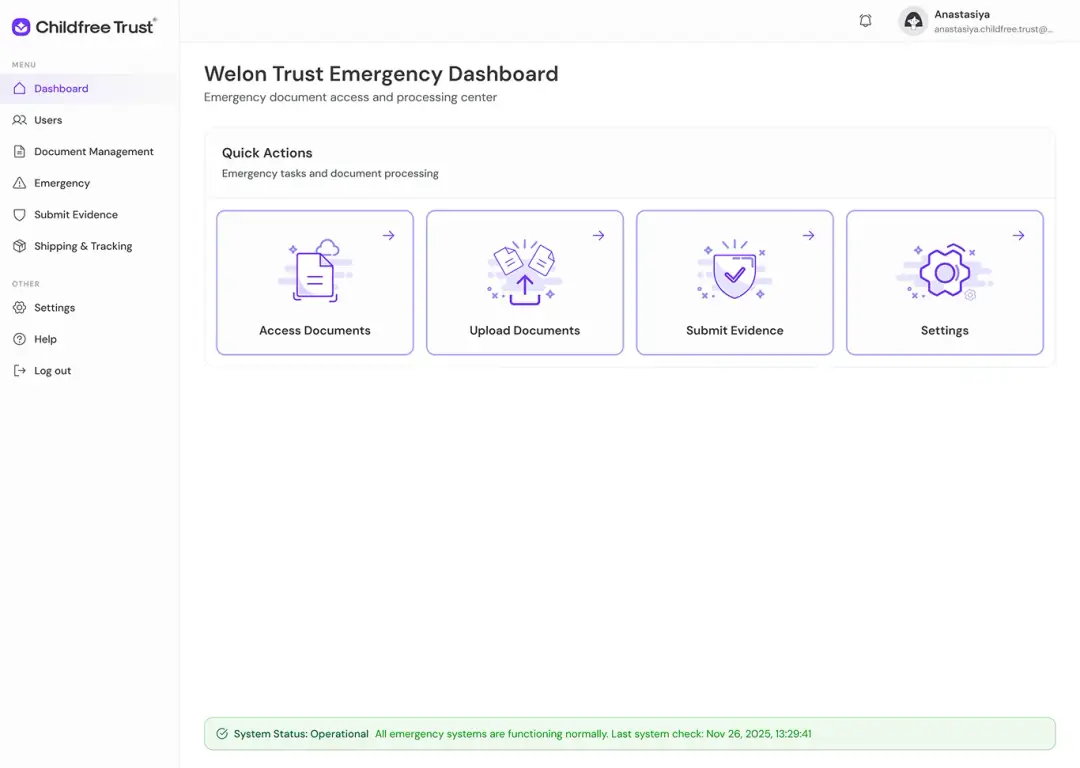
I designed a streamlined "Quick Actions" dashboard with 4 large, clearly labeled cards:
- Access Documents: icon with document + cloud — immediate access to legal documents, medical POA, and directives
- Upload Documents: icon with upload arrow — quickly add new medical records, court orders, or evidence
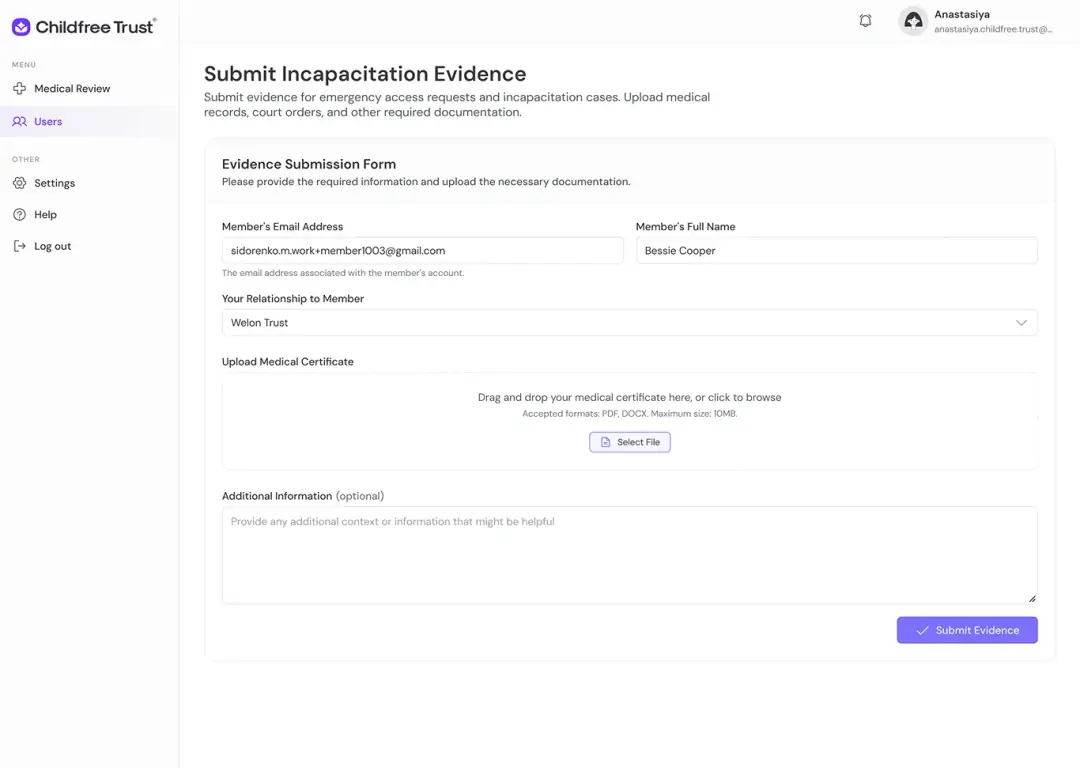
- Submit Evidence: icon with shield + checkmark — submit documentation for emergency access requests
- Settings: icon with gear — system configuration and preferences
- System Status Bar: green banner at top showing "System Status: Operational" with last check timestamp for transparency
- Clear Visual Hierarchy: large cards with purple icons, minimal text, and right arrows for clear affordance
WELON ROLE: USER MANAGEMENT
THE PAIN
Staff need to quickly identify which clients are incapacitated to trigger emergency protocols. Without clear visual indicators, critical cases can be missed.
THE SOLUTION
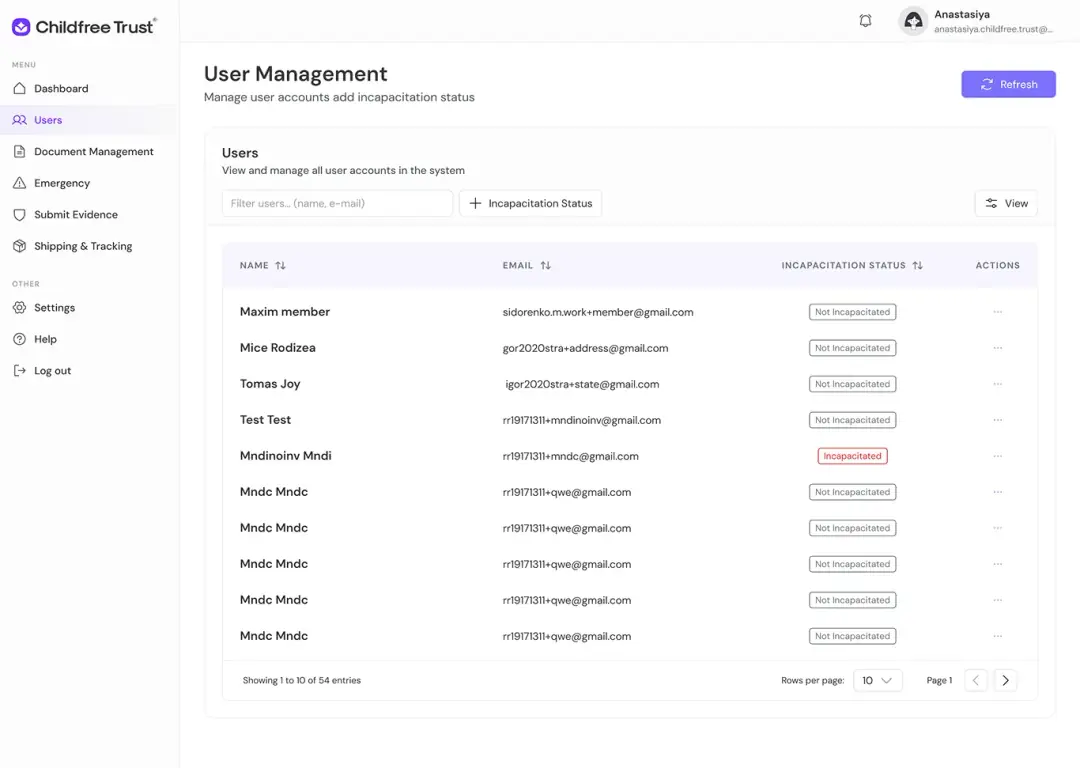
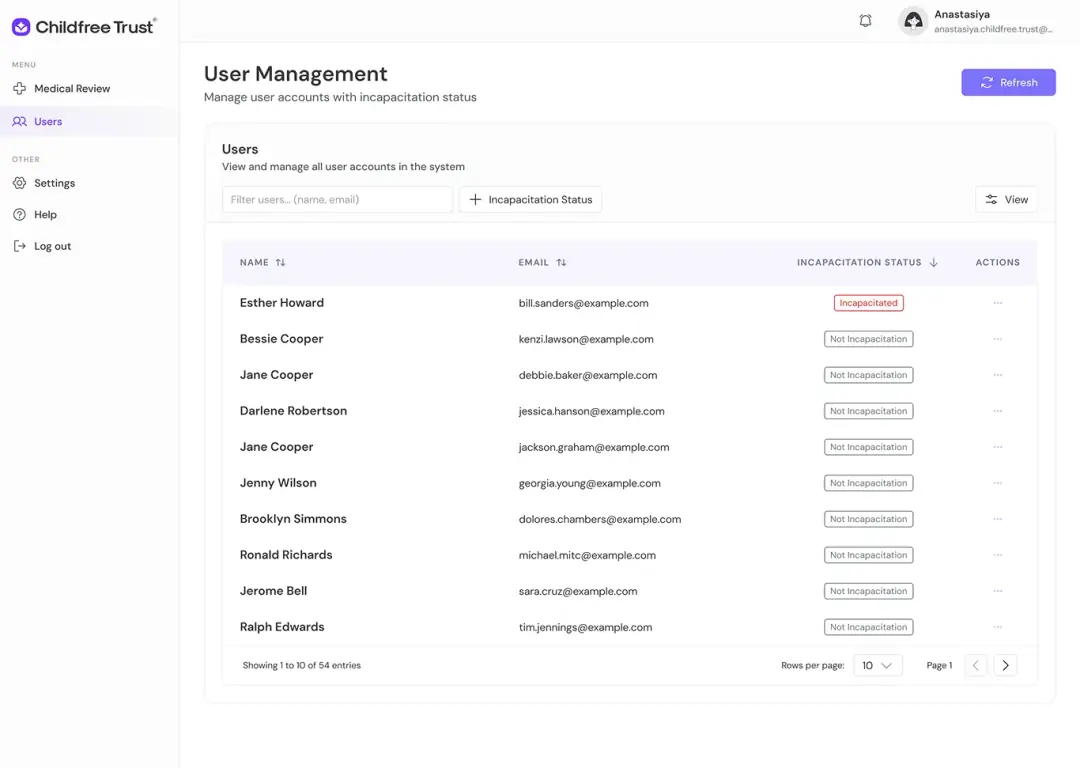
I designed a user management table with prominent incapacitation status badges:
- Table Columns: Name, Email, Incapacitation Status, Actions
- Status Badges: "Not Incapacitated" — neutral gray outline; "Incapacitated" — red outline for immediate visual attention
- Filter & Search: filter users, name/email search bar + "Incapacitation Status" button for quick filtering
- View Toggle: "View" button for switching between list/grid views
- Refresh Button: purple "Refresh" button in top-right for real-time data updates
- Pagination: 10 rows per page with navigation for managing 5k+ entries
WELON ROLE: DOCUMENT MANAGEMENT
THE PAIN
Legal documents go through multiple stages (Generated → Approved → Created → Declined). Staff need to track document status, manage shipping, and handle declines with clear reasons.
THE SOLUTION
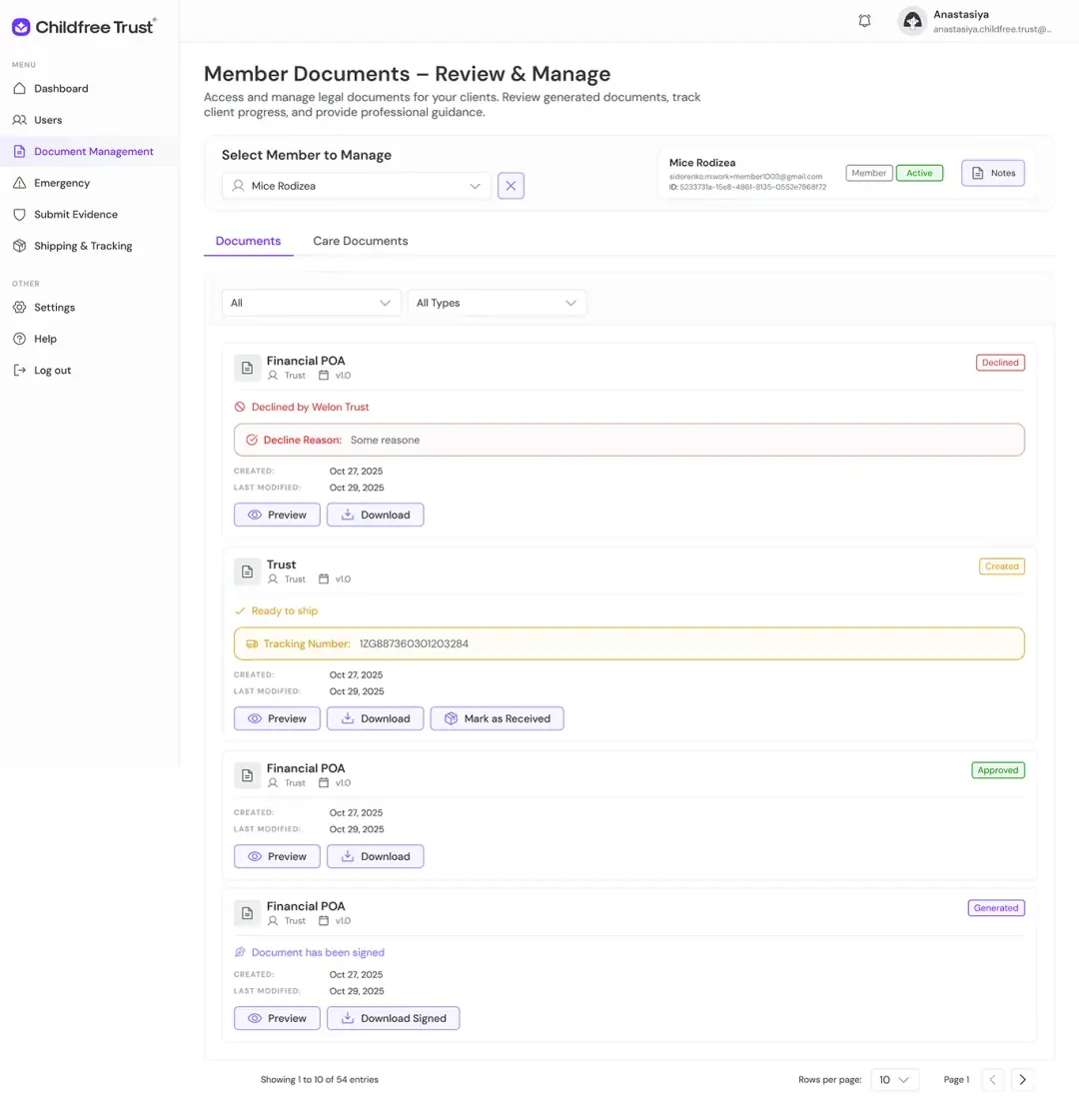
I designed a comprehensive document management interface with status tracking and action buttons:
- Member Selector: dropdown to select client + member info card showing name, email, ID, status (Member/Active), and Notes button
- Tab Navigation: Documents / Care Documents tabs for different document types
- Document Cards: each document shows document type (Financial POA, Trust), created by (Trust), version (v1.0), status badge (Declined / Created / Approved / Generated), decline reason (if declined), tracking number (if shipped), created/last modified dates
- Action Buttons: Preview, Download, Mark as Received, Download Signed
- Status Color Coding: red "Declined" with decline reason field, orange "Created" with tracking number, green "Approved", purple "Generated" with "Document has been signed" note
- Filters: "All" dropdown + "All Types" dropdown for filtering documents
WELON ROLE: EVIDENCE MANAGEMENT
THE PAIN
Emergency cases require evidence submission (incapacitation, death). Staff need to review evidence, track submission status, and manage approvals across multiple cases.
THE SOLUTION
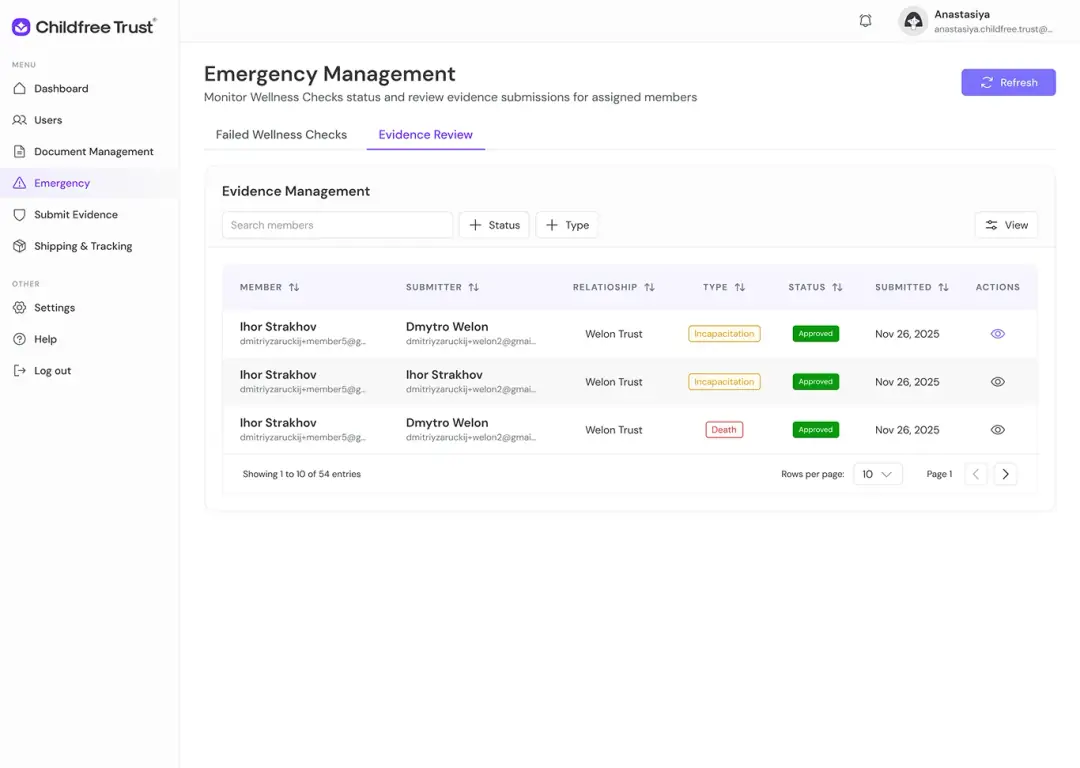
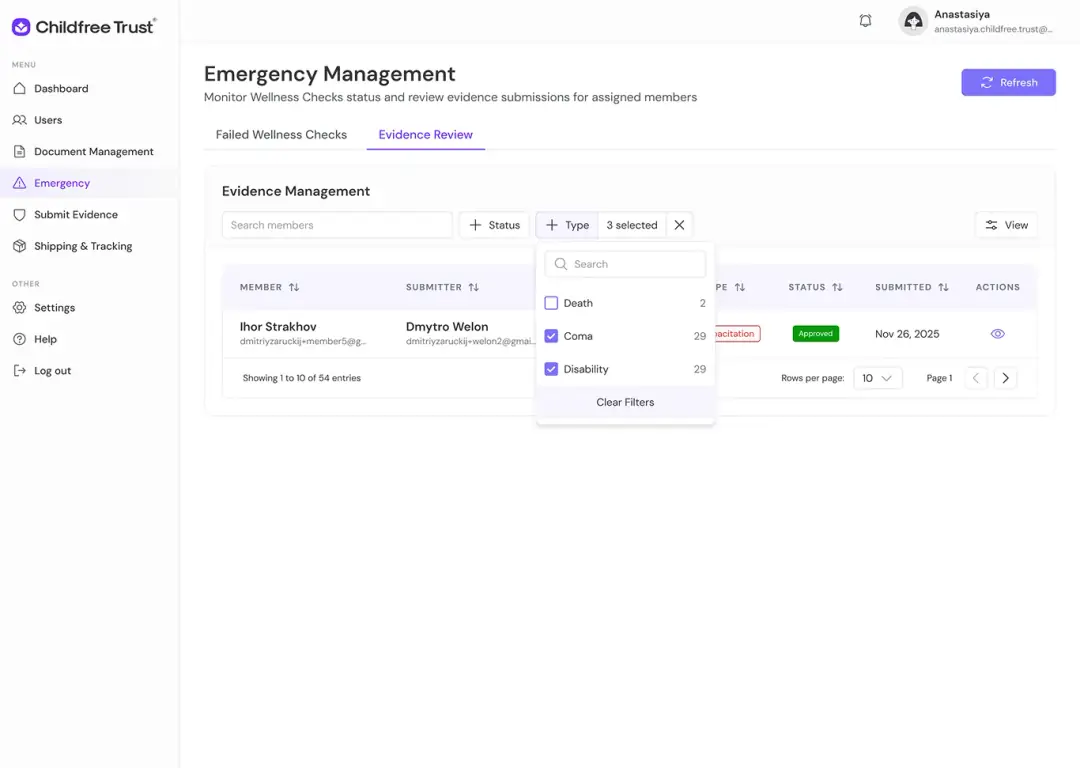
I designed an evidence management table with comprehensive filtering and status tracking:
- Tab Navigation: Failed Wellness Checks / Evidence Review tabs
- Table Columns: Member, Submitter, Relationship, Type, Status, Submitted, Actions
- Type Badges: "Incapacitation" — orange outline; "Death" — red outline
- Status Badges: "Approved" — green filled badge
- Filters: search members + Status + Type buttons for advanced filtering
- View Toggle: "View" button for customizing column visibility
- Pagination: 10 rows per page with navigation
WELON ROLE: PACKAGE & SHIPPING TRACKING
THE PAIN
Members send physical documents (wills, POA) to Childfree Trust for processing. Staff need to track incoming packages, verify contents, and manage document processing workflows.
THE SOLUTION
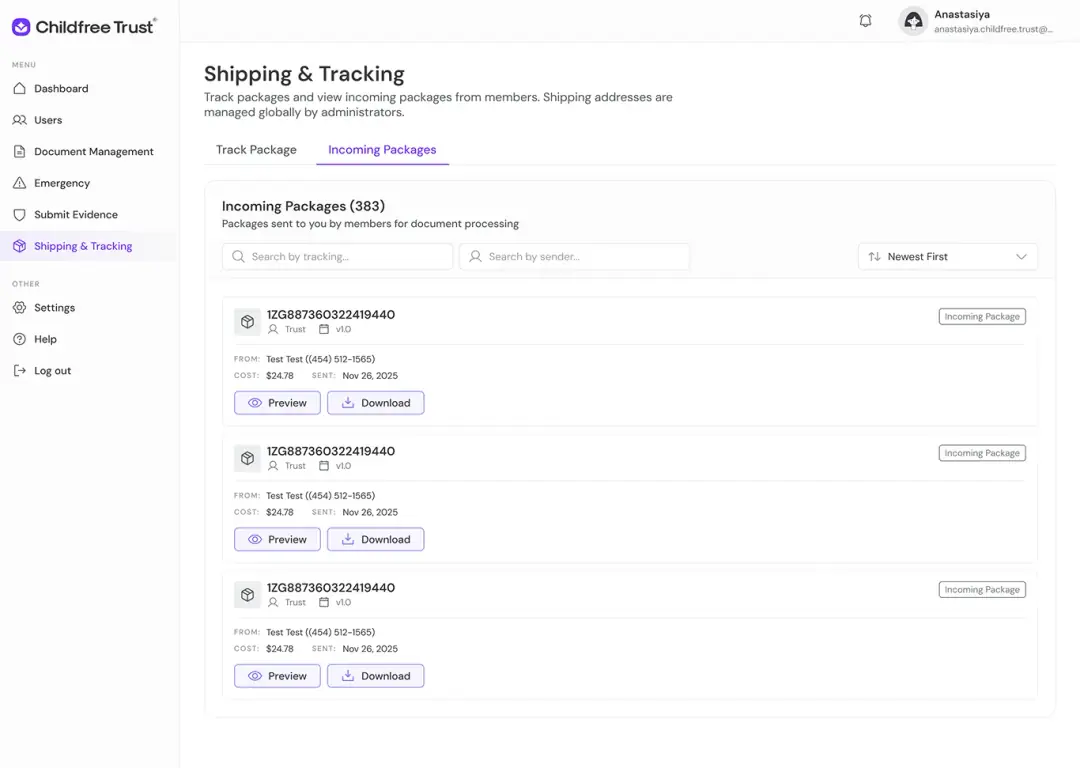
I designed a shipping tracking interface with package cards and search functionality:
- Tab Navigation: Track Package / Incoming Packages tabs
- Package Counter: "Incoming Packages (583)" showing total volume
- Search Filters: "Search by tracking..." + "Search by sender..." + "Newest First" sort dropdown
- Package Cards: each package shows tracking number (1ZG887AA0323698640), document type (Trust), version (v1.0), sender info (Teri Test, phone number), cost ($24.78) and sent date (Nov 26, 2025), "Incoming Package" status badge
- Action Buttons: Preview, Download
- Consistent Card Layout: clean, scannable design with clear information hierarchy
CALL CENTER ROLE: MEDICAL INCIDENT REPORTS
THE PAIN
Call center operators handle multiple medical incidents simultaneously. They need to track reporting individuals, client names, incident status, and email notifications — all while ensuring no case falls through the cracks.
THE SOLUTION
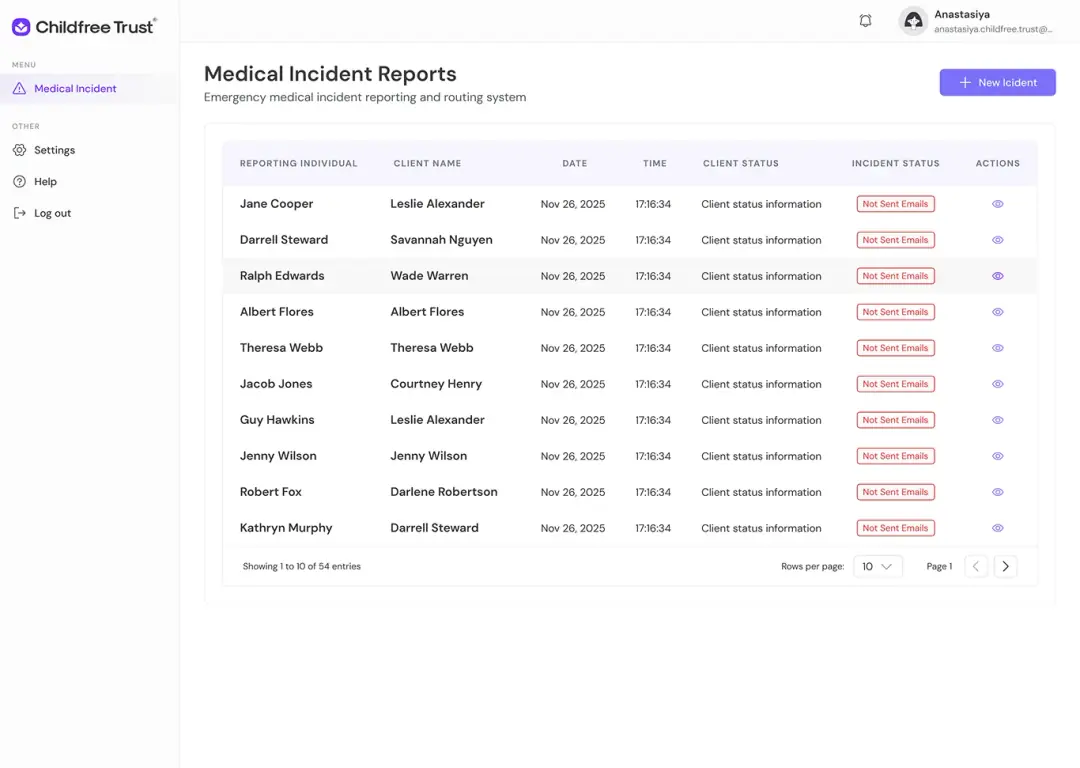
I designed an incident tracking table with clear status management:
- Table Columns: Reporting Individual, Client Name, Date, Time, Client Status, Incident Status, Actions
- Incident Status Badges: "Not Sent Email" in red outline badge — immediately shows which incidents lack email notifications
- Client Status: "Client status information" text field showing current state
- New Incident: CTA purple button for creating new incident reports
- View Actions: eye icon for detailed incident view
- Pagination: 10 rows per page with navigation for managing 5k+ entries
- Visual Hierarchy: clear separation between reporting individual (who called) and client name (who needs help)
CALL CENTER ROLE: 5-STEP MEDICAL INCIDENT WORKFLOW
THE PAIN
Medical incidents follow a complex 5-step workflow. Without visual progress tracking, operators lose track of which steps are complete and what's pending.
THE SOLUTION
I designed a step-by-step workflow with visual progress indicators and dynamic forms:
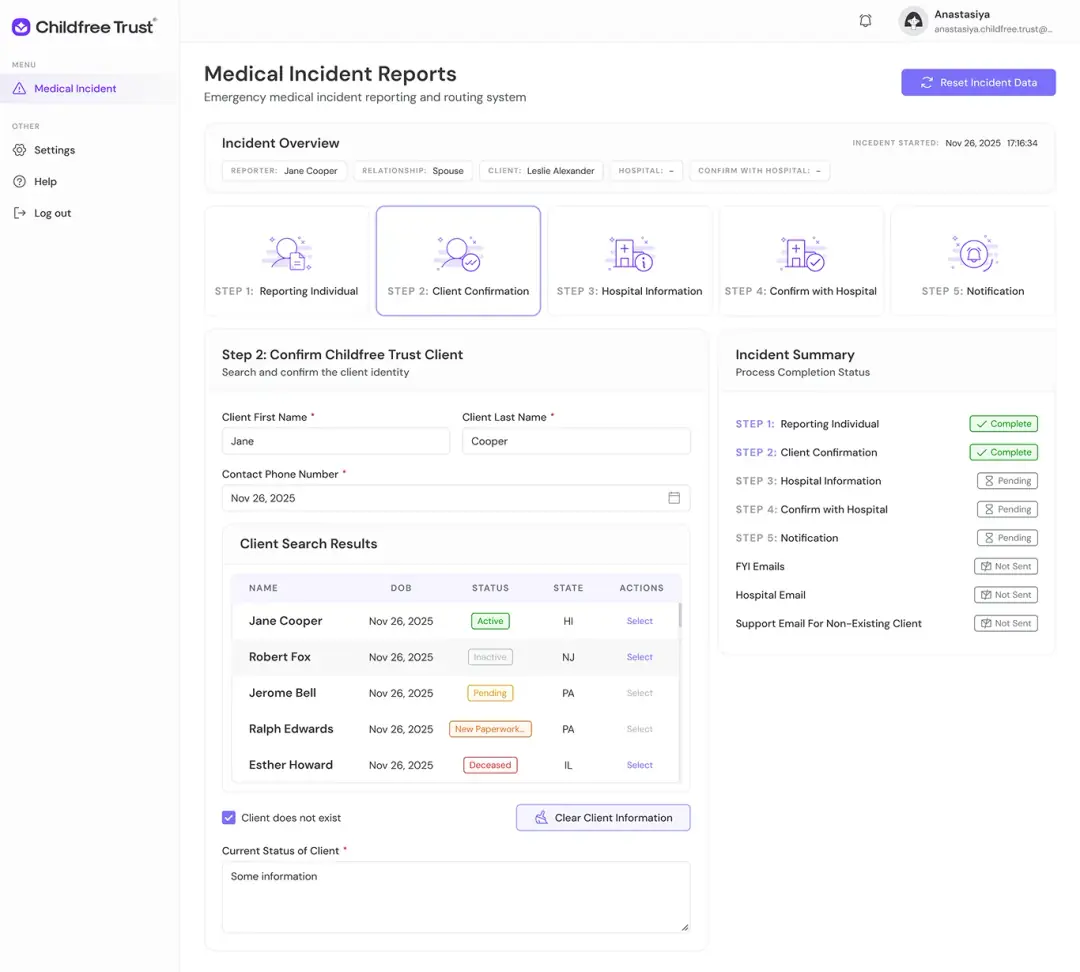
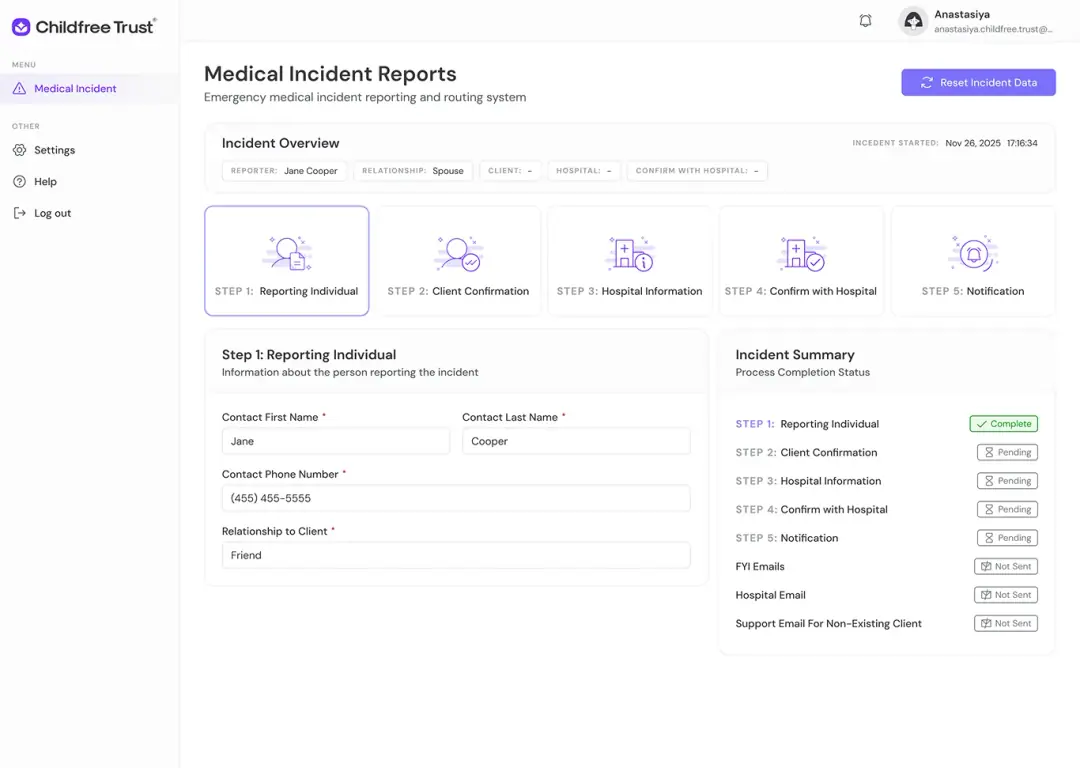
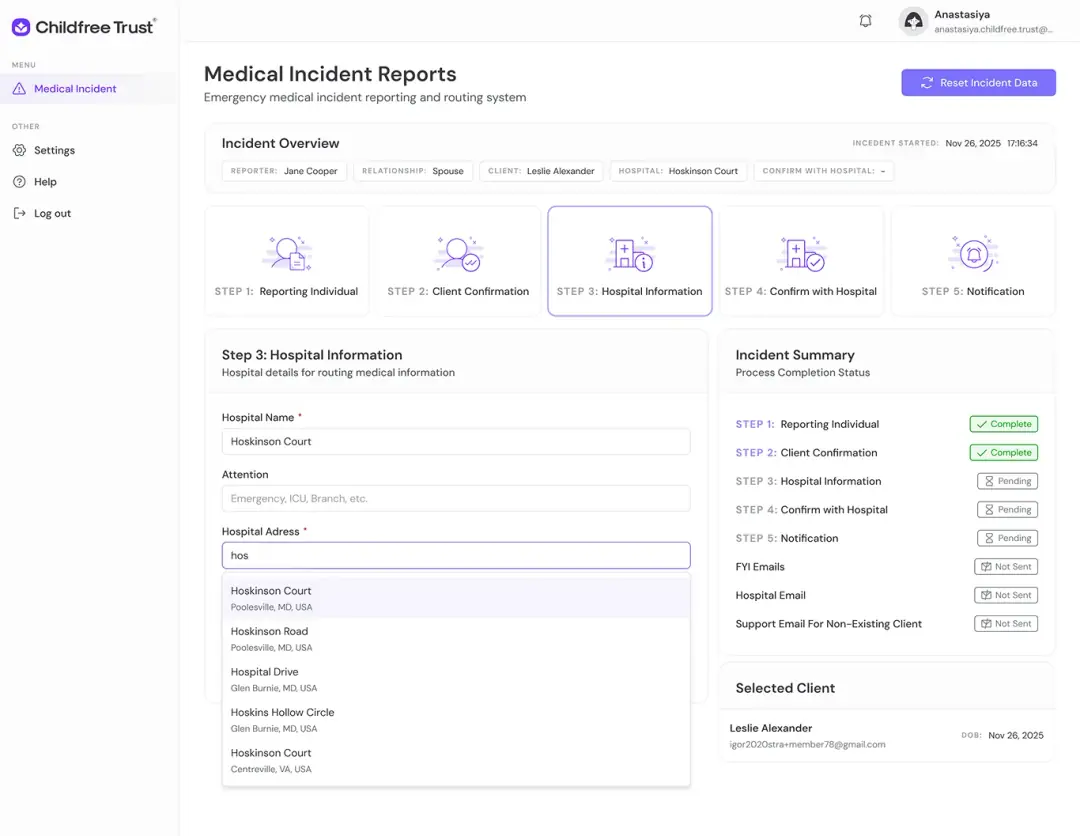
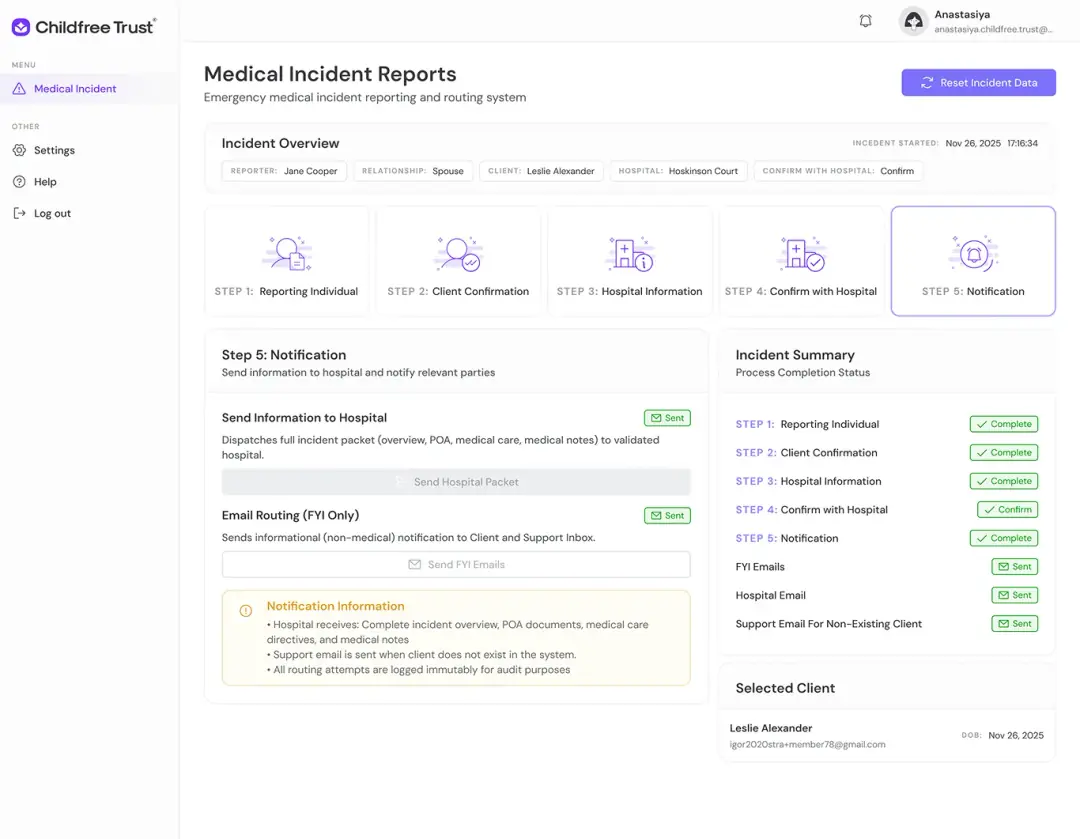
- Incident Overview Header: shows reporter, relationship, client, hospital, confirm with hospital status, incident start timestamp (Nov 26, 2025 17:10:34), "Reset Incident Data" button for starting over
- 5-Step Visual Progress: STEP 1 Reporting Individual (person with document icon), STEP 2 Client Confirmation (person with checkmark), STEP 3 46-Hr Info (hospital with info icon), STEP 4 Confirm with Hospital (hospital with checkmark), STEP 5 Notification (bell icon)
- Active step highlighted with purple border; completed steps show green checkmarks in incident summary
- Step 1: Reporting Individual Form — contact first/last name, phone number with format example, relationship to client
- Step 2: Client Confirmation Form — client first/last name, date of birth with date picker, "Client does not exist" checkbox for non-members, "Clear Client Information" button, current status textarea, client search results with purple background for no matches
- Step 5: Notification — send information to hospital with "Sent" badge, email routing (FYI only) with "Sent" badge, notification information box with orange background explaining hospital receives complete incident overview, POA documents, medical care directives, and medical notes; support email sent when client does not exist in the system
- Incident Summary (Right Sidebar): completion status for all 5 steps, email status (FYI Email, Hospital Email, Support Email for Non-Existing Client), selected client card with name, email, DOB, status badges: "Pending" (hourglass), "Complete" (green checkmark), "Confirm" (green outline), "Sent" (green envelope)
MEDICAL ROLE: MEDICAL REVIEW
THE PAIN
Medical staff need to review dozens of clients' Medical POA and My Care Reports daily. Without clear visual status indicators and quick filtering, critical reviews get delayed.
THE SOLUTION
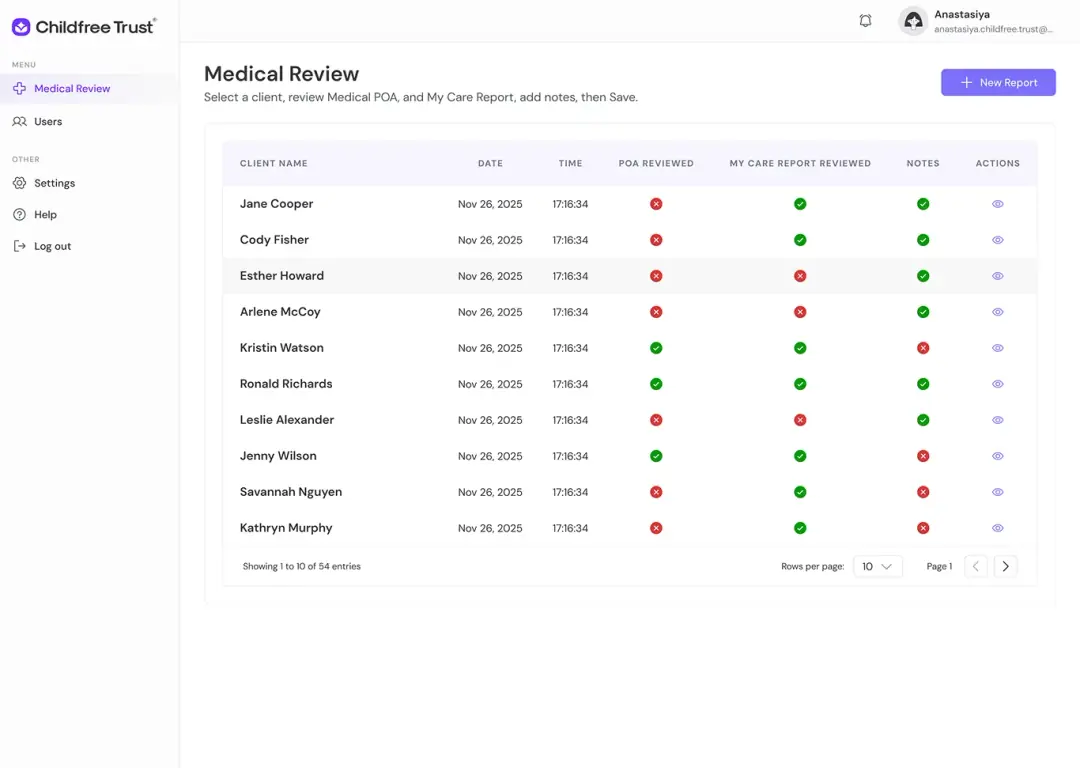
I designed a comprehensive medical review table with at-a-glance status tracking:
- Table Columns: Client Name, Date, Time, POA Reviewed, My Care Report Reviewed, Notes, Actions
- Visual Status Indicators: green checkmark = reviewed/complete, red × = not reviewed/rejected
- Instant visual scanning of completion status across 3 critical columns
- Quick Actions: eye icon for viewing detailed client records
- "New Report" CTA: prominent purple button in top-right for creating new reviews
- Clear Instructions: subtitle "Select a client, review Medical POA, and My Care Report, add notes, then Save" guides workflow
- Pagination: "Rows per page: 10" with page navigation for managing 5k+ entries
MEDICAL ROLE: 4-STEP WORKFLOW FORM
THE PAIN
Medical reviews involve multiple documents (POA, Care Report) and notes. Without a structured workflow, staff miss critical steps or lose track of what's been reviewed.
THE SOLUTION
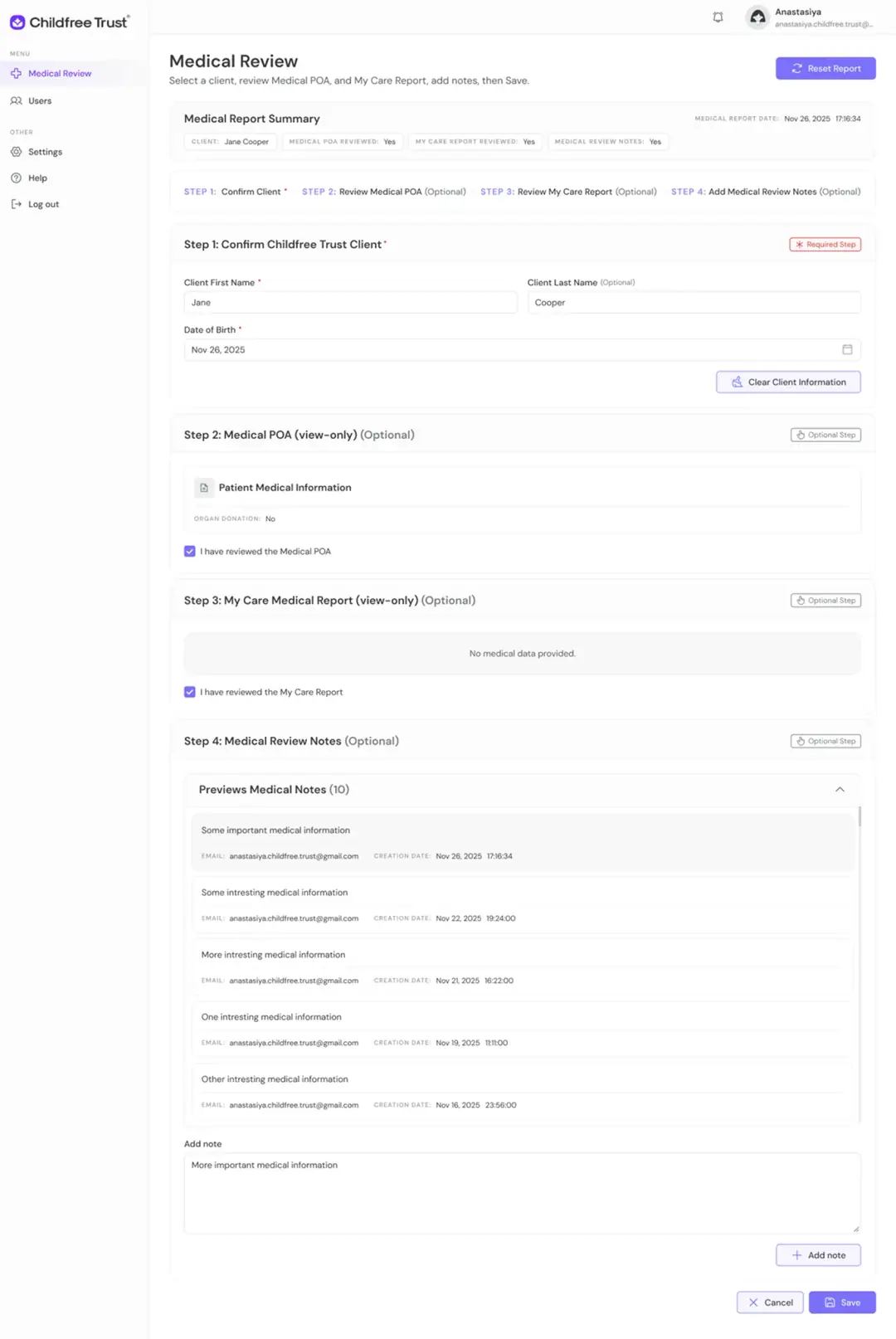
I designed a 4-step medical review form with clear required/optional distinctions:
- Medical Report Summary Header: shows client name, Medical POA Reviewed (Yes/No), My Care Report Reviewed (Yes/No), Medical Review Notes (Yes/No), report date timestamp, "Reset Report" button
- 4-Step Progress Bar: STEP 1 Confirm Client ("Required Step" — red badge), STEP 2 Review Medical POA (Optional — gray badge), STEP 3 Review My Care Report (Optional — gray badge), STEP 4 Add Medical Review Notes (Optional — gray badge)
- Completed steps turn purple; required step marked with red asterisk
- Step 1: Confirm Childfree Trust Client (Required) — client first/last name, date of birth with date picker, "Clear Client Information" button, red "Required Step" badge
- Step 2: Medical POA (view-only, Optional) — patient medical information card showing organ donation status, "Hospital has the Medical POA" checkbox, "No medical data available" empty state
- Step 3: My Care Medical Report (view-only, Optional) — similar structure, "I have reviewed the My Care Report" checkbox, "No medical data provided" empty state
- Step 4: Medical Review Notes (Optional) — previous medical notes accordion (10) showing historical notes with content, email author, creation date; "Add note" text area + button; notes timestamped and attributed for audit trail
MEDICAL ROLE: USER MANAGEMENT
THE PAIN
Medical staff need to view user accounts with incapacitation status to prioritize care and understand client health context.
THE SOLUTION
I designed a user management table tailored for medical review workflow:
- Sidebar: Medical Review (primary) + Users, Settings, Help, Log out
- Table Columns: Name, Email, Incapacitation Status, Actions
- Status Badges: "Incapacitated" — red outline (immediate medical attention needed); "Not Incapacitated" — neutral gray outline
- Filter & Search: filter users, name/email + "Incapacitation Status" button
- View Toggle & Refresh: consistent with other roles
- Three-dot menu: for additional actions per user
MEDICAL ROLE: MEDICAL INFORMATION
THE PAIN
When reviewing a specific client, medical staff need a complete picture: incidents, reports, notifications, and historical notes — all in one place.
THE SOLUTION
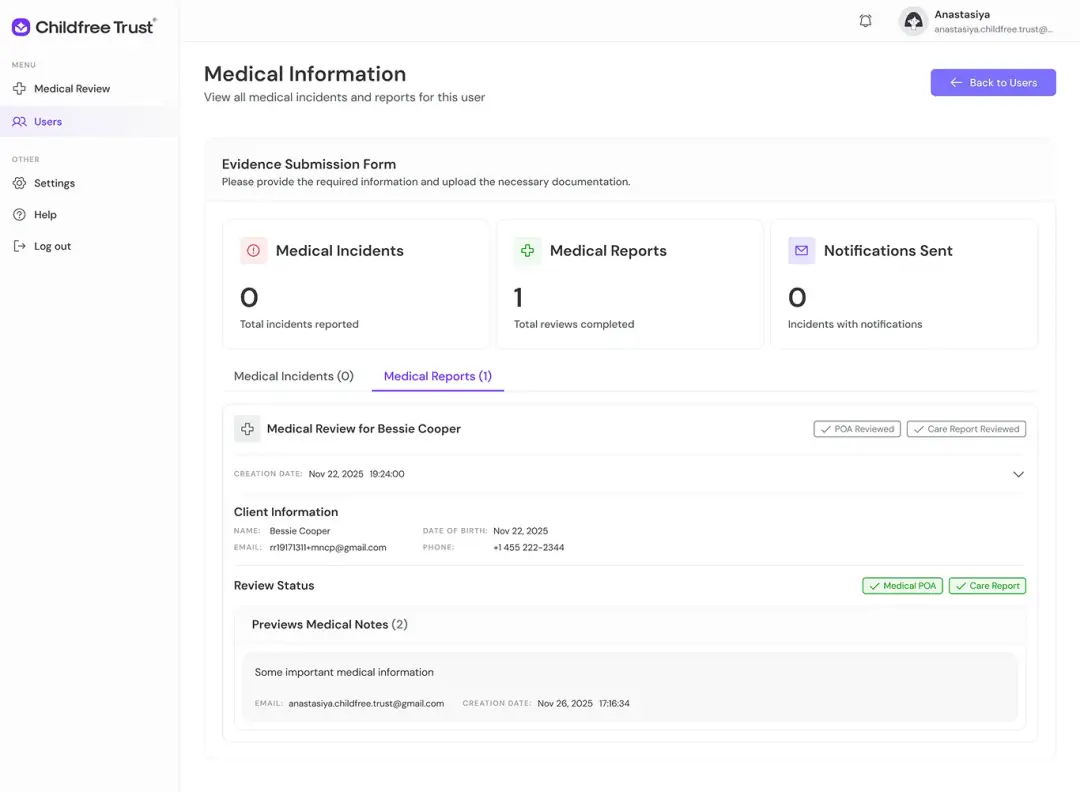
I designed a comprehensive individual user medical information page with stat cards and tabbed content:
- Evidence Submission Form Header: "Please provide the required information and upload the necessary documentation", "Back to Users" button for navigation
- 3 Stat Cards: Medical Incidents: 0 (red alert icon) — "Total incidents reported"; Medical Reports: 1 (green plus icon) — "Total reviews completed"; Notifications Sent: 0 (purple mail icon) — "Incidents with notifications"
- Tab Navigation: Medical Incidents (0) / Medical Reports (1) — active tab in purple
- Medical Report Card (for Bessie Cooper): header "Medical Review for Bessie Cooper" with plus icon, status badges "POA Reviewed: ✓" and "Care Report Reviewed: ✓", creation date Nov 22, 2025 19:24:00
- Client Information section: Name, Email, Date of Birth, Phone
- Review Status section: "Medical POA" ✓, "Care Report" ✓ (green badges)
- Previous Medical Notes (2): expandable section showing historical notes with email author and creation date
COMPLEX DATA MANAGEMENT & TABLES
THE PAIN
The CRM handles hundreds of clients, incidents, documents, and status updates. Poor table design leads to errors, missed deadlines, and frustrated staff.
THE SOLUTION
I designed consistent, data-rich tables across all modules:
- Consistent Table Patterns: same column structure, pagination, and action icons across all modules
- Sortable Columns: date, time, name, and status columns for quick filtering (indicated by ↑↓ arrows)
- Row Highlighting: hover states and selected row indicators for clarity
- Status Color Coding: green (complete/approved/reviewed), red (incomplete/rejected), orange (pending) — universal across all modules
- Pagination Controls: "Showing 1 to 10 of 5k entries" with customizable rows per page (10/25/50)
- Quick Actions Column: eye icon for view, three-dot menu for more actions — consistent across all tables
EMERGENCY ACCESS & DOCUMENT MANAGEMENT
THE PAIN
In emergency situations (client unconscious, hospitalized), Welon Trust staff need instant access to legal documents, medical directives, and POA — but the system must also maintain strict security and audit trails.
THE SOLUTION
I designed a secure, fast document access system:
- Quick Actions Dashboard: one-click access to "Access Documents" and "Submit Evidence"
- Document Categories: legal documents, medical records, court orders, POA, care reports
- Upload Functionality: drag-and-drop or file picker for adding new documents
- Evidence Submission: structured form for emergency access requests with required fields
- Audit Trail: timestamp tracking for all document access and uploads
- Security Badges: clear visual indicators of document sensitivity and access permissions